Open Zaak Afhandel App for the first time
A first look at ZAA — where the app lives, what the navigation gives you, and how to tell it is wired up to OpenRegister.
Goal
By the end you will have opened the Zaak Afhandel App, recognised the dashboard and the in-app navigation, and confirmed that the OpenRegister-backed lists (Zaken, Taken, Klanten, …) load.
Prerequisites
- A Nextcloud account on an instance where the Zaak Afhandel App is installed and enabled.
- The OpenRegister app installed and enabled — ZAA stores everything (zaken, taken, rollen, besluiten) in OpenRegister, so it is a hard dependency.
- The ZAA register and its schemas imported. An admin runs this once from Settings → Administration → Zaak Afhandel App (see Manage Zaak Afhandel App settings).
Steps
-
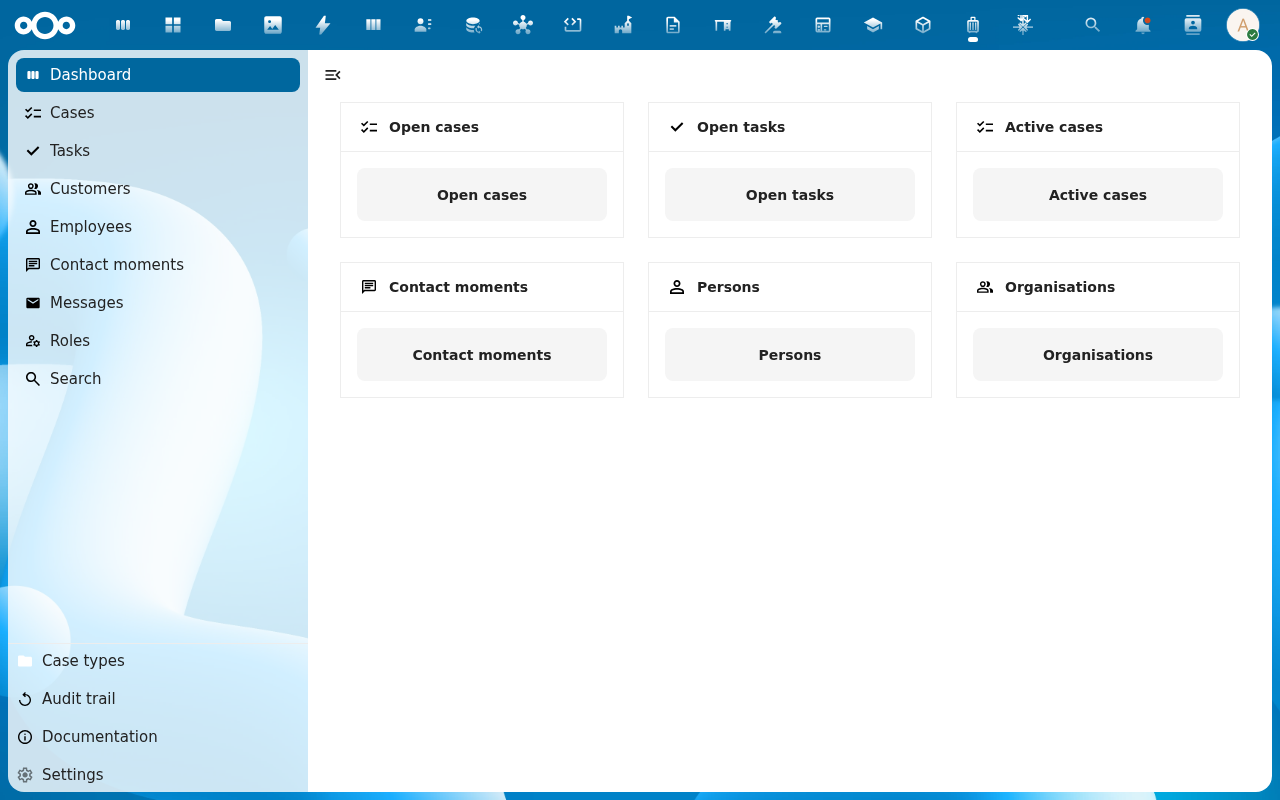
Open the Nextcloud app menu in the top bar and pick Zaak Afhandel App. You land on the dashboard.
-
Read the dashboard. The widgets surface the things case handlers care about most — Open zaken, Taken, Klanten, Contactmomenten, Personen, Organisaties. On a fresh install they read
0; they fill in as work moves through the app.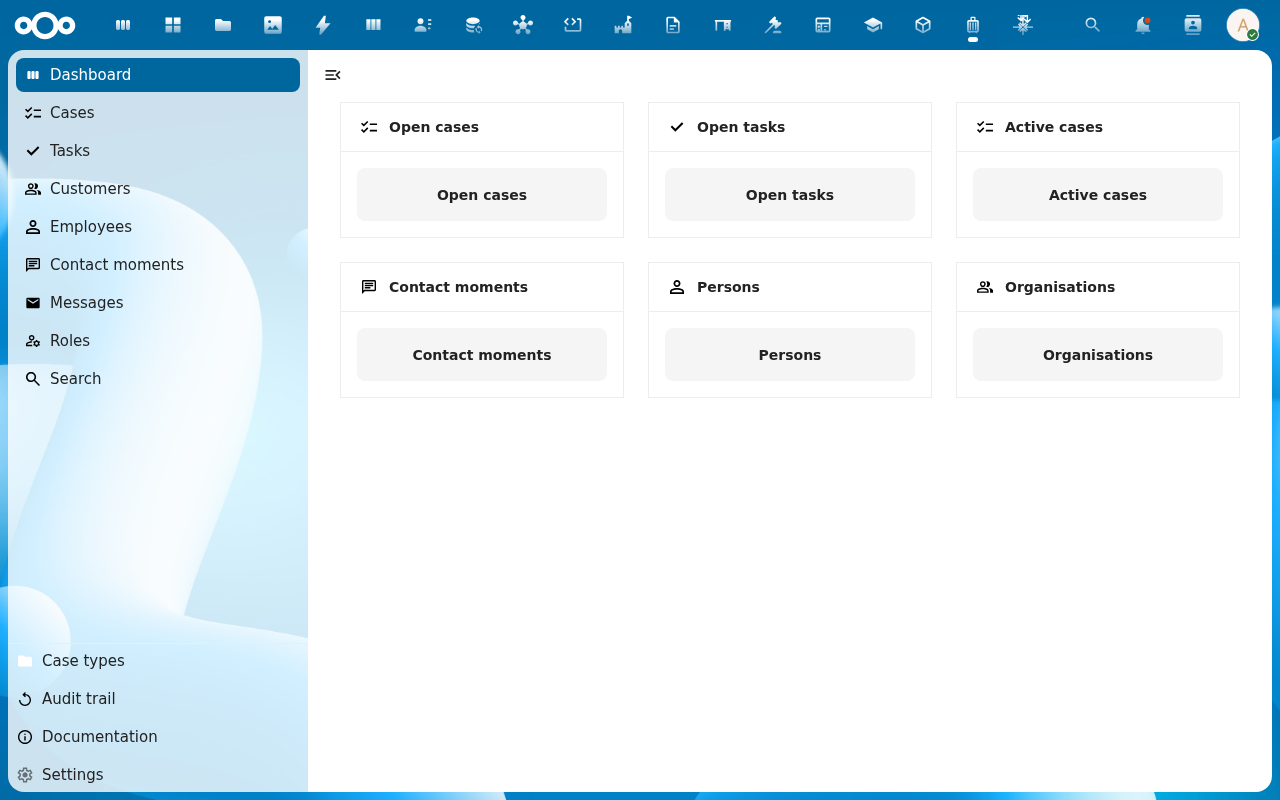
-
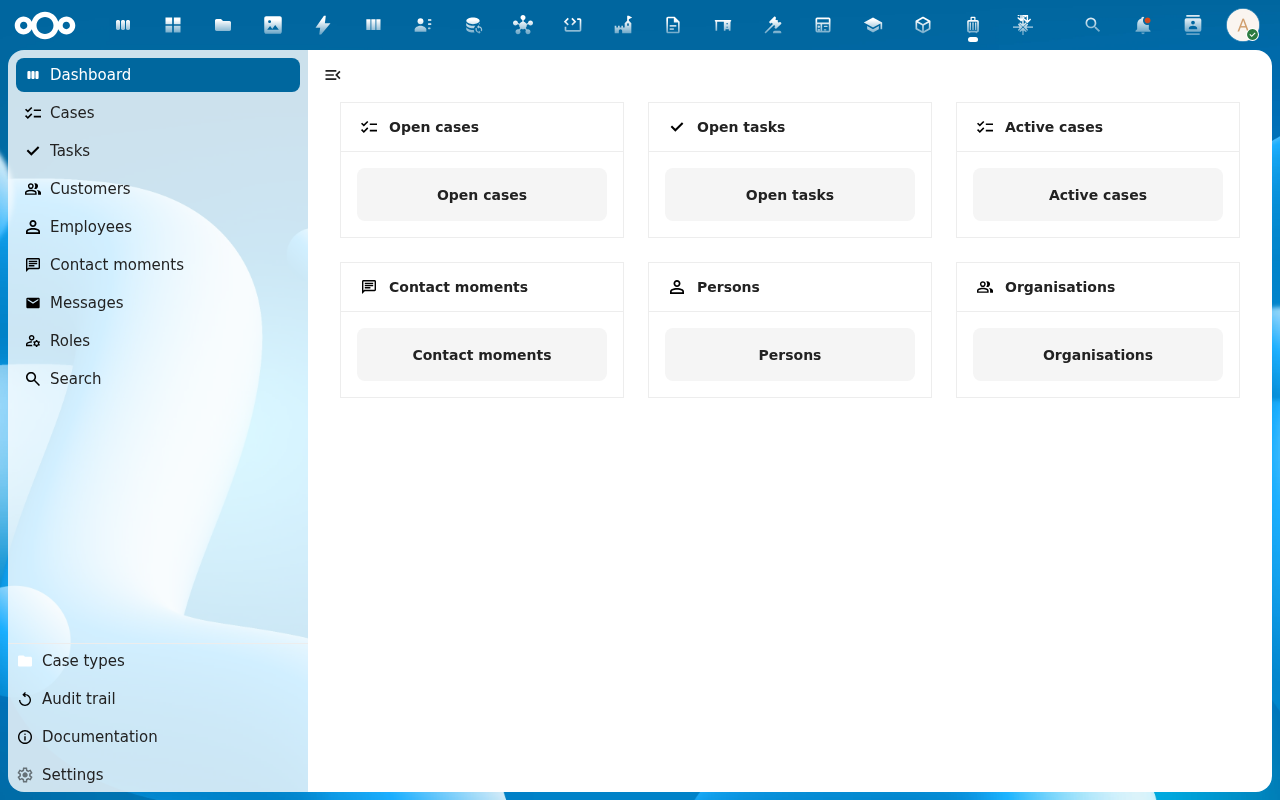
Open the in-app navigation. The entries map one-to-one onto the things ZAA tracks: Zaken, Taken, Klanten, Medewerkers, Contactmomenten, Berichten, Rollen, Zaaktypen, Besluiten, Documenten, Resultaten, Statussen. Search (Zoeken) and Settings sit below the divider.
-
Click Zaken. The list view opens with a search/filter sidebar and an Add Item button. An empty install shows No items found — expected until someone registers the first zaak.

Verification
You are set up correctly when: the ZAA dashboard renders without an error banner, the in-app navigation lists the entries above, and clicking through to Zaken (or any other list) shows either rows or a clean No items found state — not a load error.
Common issues
| Symptom | Fix |
|---|---|
| "OpenRegister is not installed or enabled" banner | Install and enable the OpenRegister app, then reload ZAA. |
| Lists load but Add Item opens a modal with no form fields | The ZAA register import is incomplete — an admin re-runs the configuration import from the admin settings page. |
| Zaak Afhandel App is missing from the app menu | The app is not enabled for your account — ask an administrator to enable it (and check it is not restricted to a group you are not in). |
Reference
- Features (detailed) — the full case-handling feature set with screenshots.
- Manage Zaak Afhandel App settings — register import and admin configuration.
- Procest and Pipelinq — the supported successors of ZAA.